.png)

Welcome to the Floormaster online store. This guide walks you through everything you can do on our website – from creating an account to placing, uploading and automating your orders.
New here? Start by creating an account to view trade pricing, then use Upload Order to add many products at once.
Creating an account
Click LOGIN/REGISTER at the top right of any page, then choose to create a new account. Enter your contact and business details and submit the form. Once registered, you can log in at any time to view pricing, place orders and track your order history.
Placing an order
Browse using the PRODUCTS menu or the search bar at the top of the page. On a product, enter the quantity you need and click Add to Cart. When you are ready, open your cart (top right) and follow the checkout steps to confirm your delivery and payment details.
Finding a product’s Stock Code
Every product has a unique Stock Code (for example C11391). You will find it listed on each product’s page, shown as “Stock Code”. You’ll need these codes to upload orders or use the quick text entry method described below.
Uploading an order from a CSV file
If you regularly order the same products, you can add them all to your cart in one step. Go to Upload Order (linked in the Shopping section of the footer, or at Cart → Upload Order), choose the CSV File method, select your file and upload. The items are added to your cart automatically so you can review them before checkout.
Your file must follow these rules
- Use two columns in the order Stock Code, Quantity – one product per row. No column headings are required.
- The file must be saved as a .csv file. Excel workbooks (.xls / .xlsx) are not accepted. In Excel, use File → Save As → CSV (Comma delimited) (*.csv) before uploading.
Example of a correctly formatted file:
1035M,5
1121M,10
B-40007,3
FM250,3
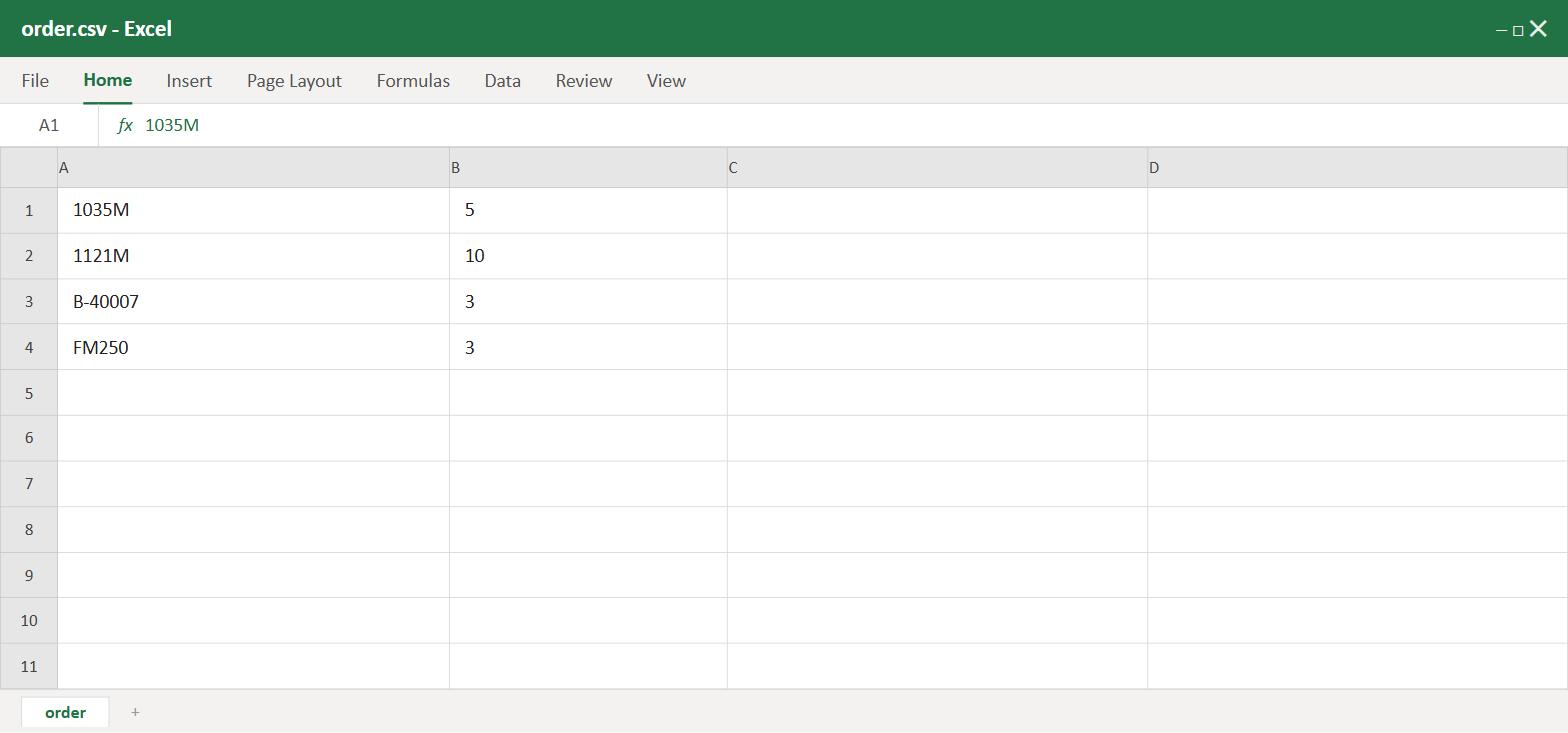
The same order set up in Excel – Stock Code in column A, Quantity in column B, then saved as .csv.
Quick order using direct text entry
For a fast order without creating a file, go to the same Upload Order page and choose the Direct Text Entry method. Type your products straight into the box using the same Stock Code, Quantity format, one product per line, then click Upload to add them to your cart. For example:
1035M,5
FM250,3
Setting up a recurring order
If you need the same order delivered on a regular schedule, you can make any order recurring during checkout – there’s no separate form to fill in.
- Add your products to the cart as normal and proceed to Checkout.
- Near the bottom of the checkout page, find “Create a Recurring Order” and tick Make this order recurring.
- Give the recurring order a name for your own records and choose a start date.
- Choose how often it should be processed under Processing Frequency (for example weekly, fortnightly or monthly – options range from daily up to every 12 weeks).
- Under Recurring Duration, choose whether it runs indefinitely until you cancel, until a set expiry date, or for a fixed number of orders.
- Complete the checkout as usual. Your recurring order will then be processed automatically on the schedule you set.
You can view, manage or cancel your recurring orders at any time under My Account → View my Recurring Orders.
Need help?
If you get stuck at any stage, our team will be happy to assist.
Contact Us